TABLE OF CONTENTS
- Logging Into the Portal / Account Activation
- Viewing a Portal Record
- Updating Portal Account Information
- Requesting Portal Assistance
Logging Into the Portal / Account Activation
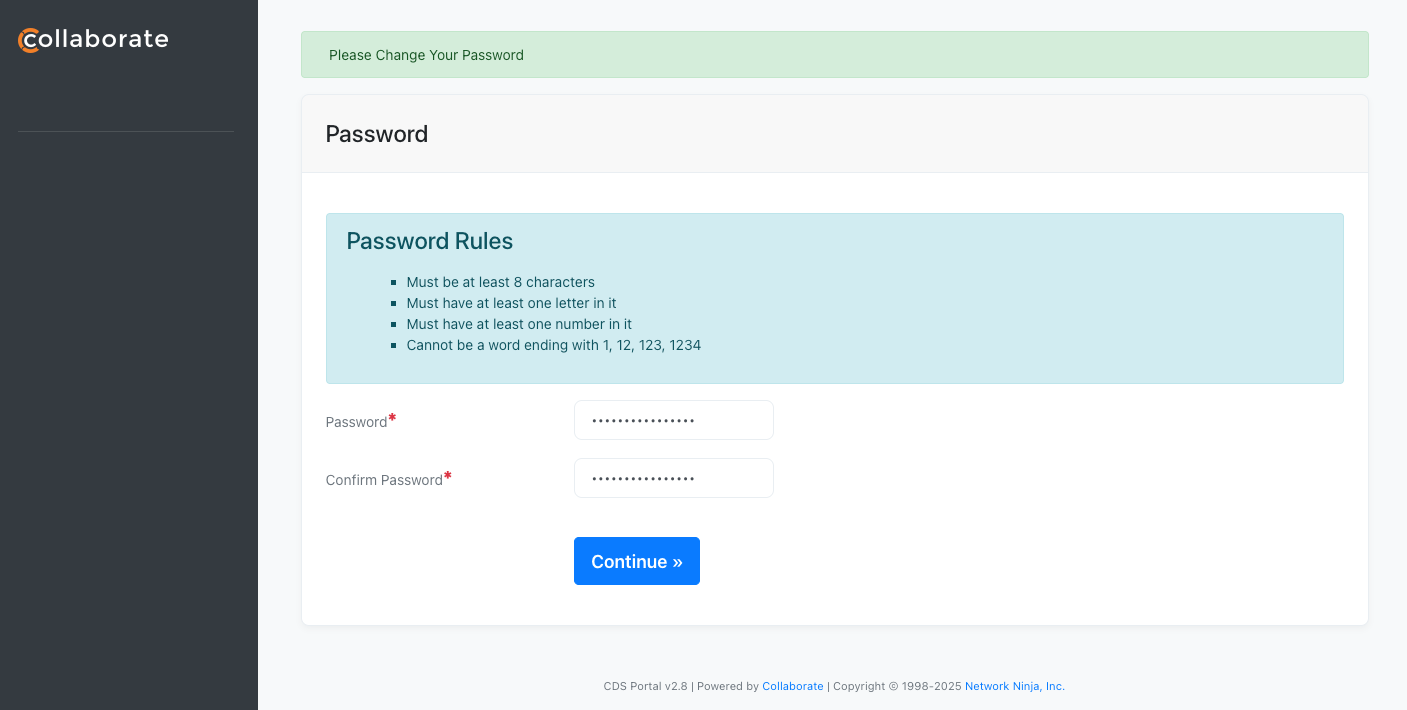
Once a Portal Account has been created for you, you will receive an email containing an Activation Link. Clicking on the Activation link will first prompt you to create your password.
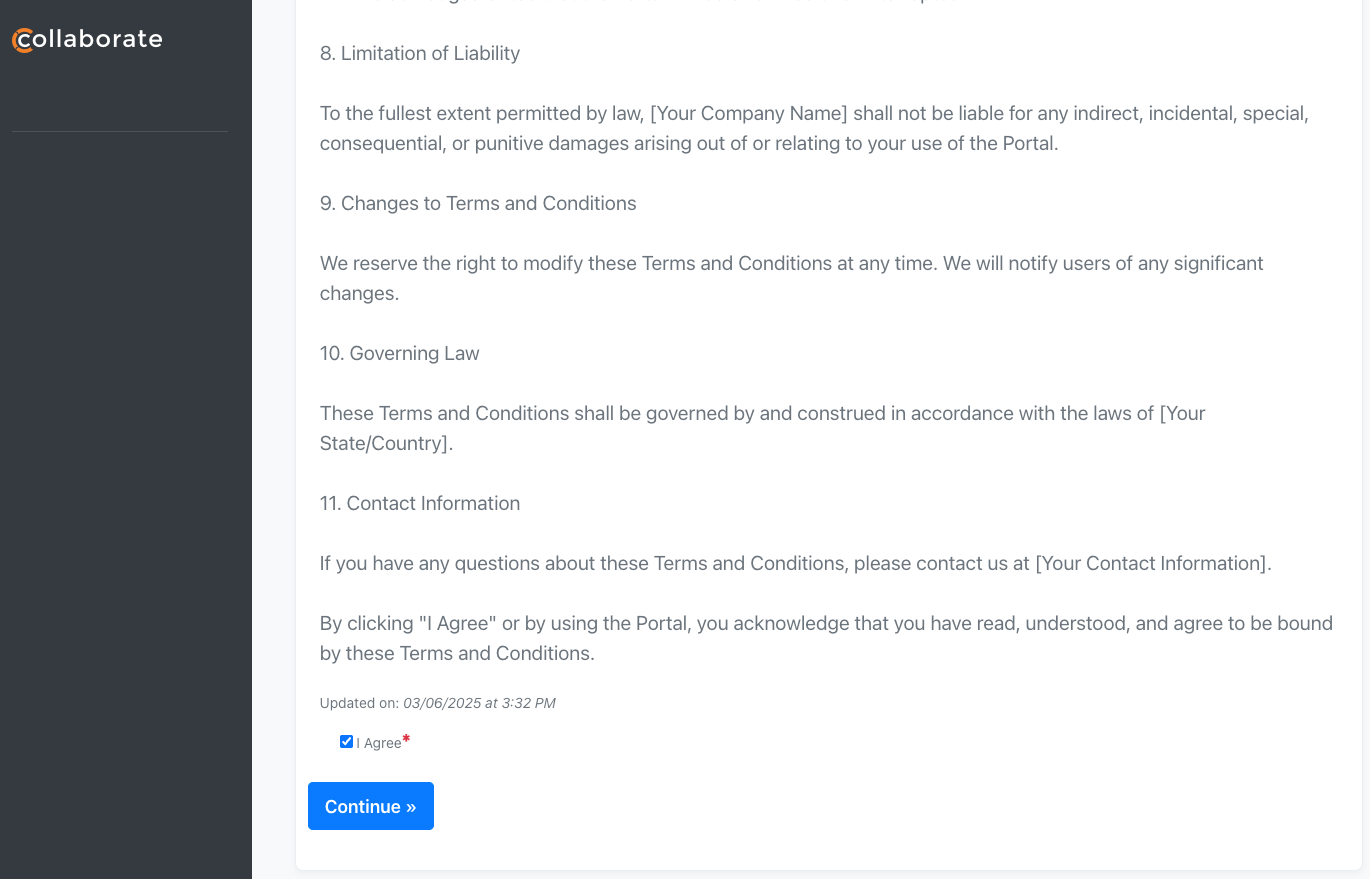
Next, you will be prompted to Accept the Terms and Conditions of the Portal. Check the “I Agree” box and click Continue.
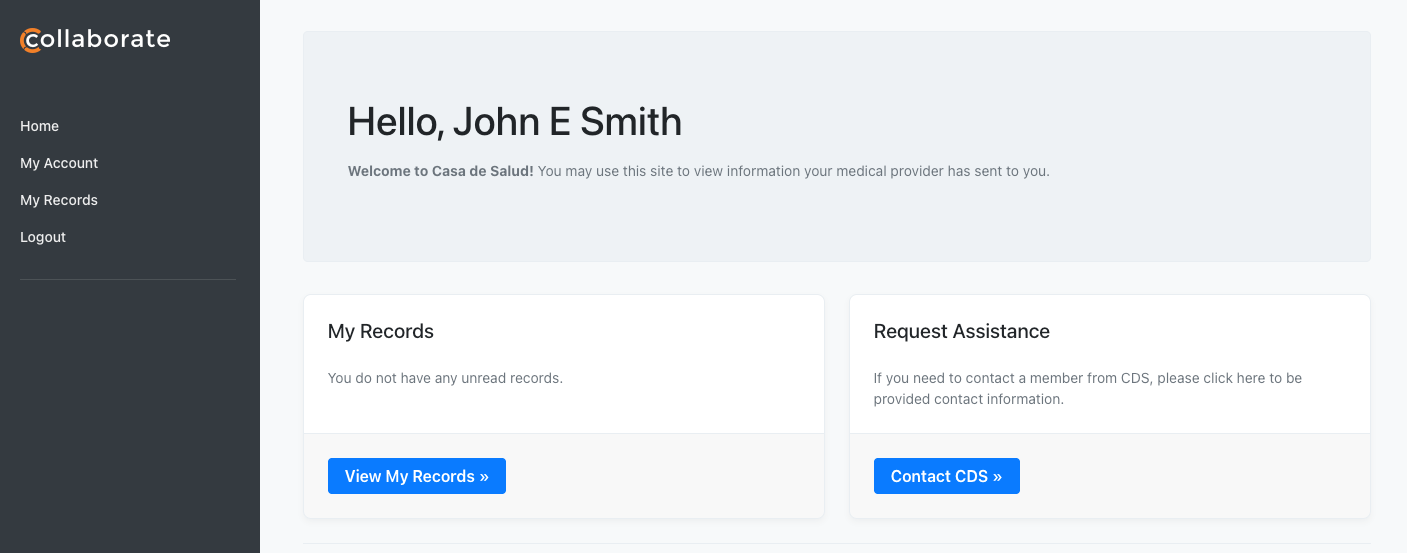
You will now be logged into the portal and directed to your Home Page.
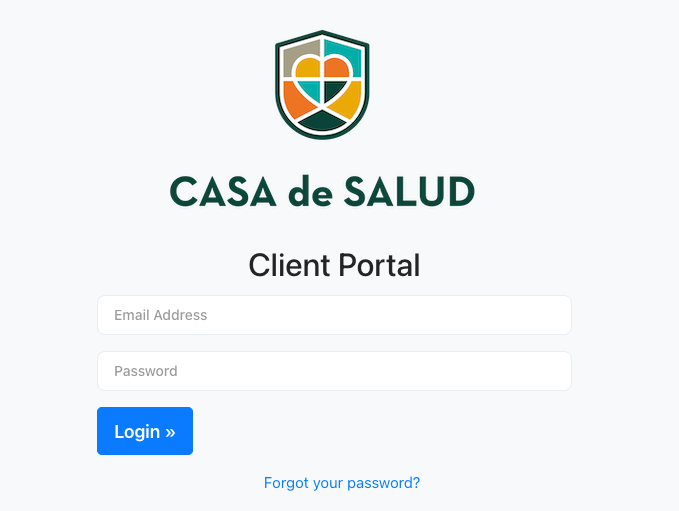
Now that your account has been activated and your password has been set, you can log into the Portal at any time by entering your Email address and Password.
Viewing a Portal Record
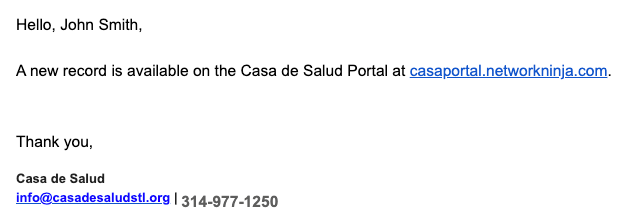
Whenever a message is sent to your portal account, you will receive an email alert. The email will contain a link to the portal.
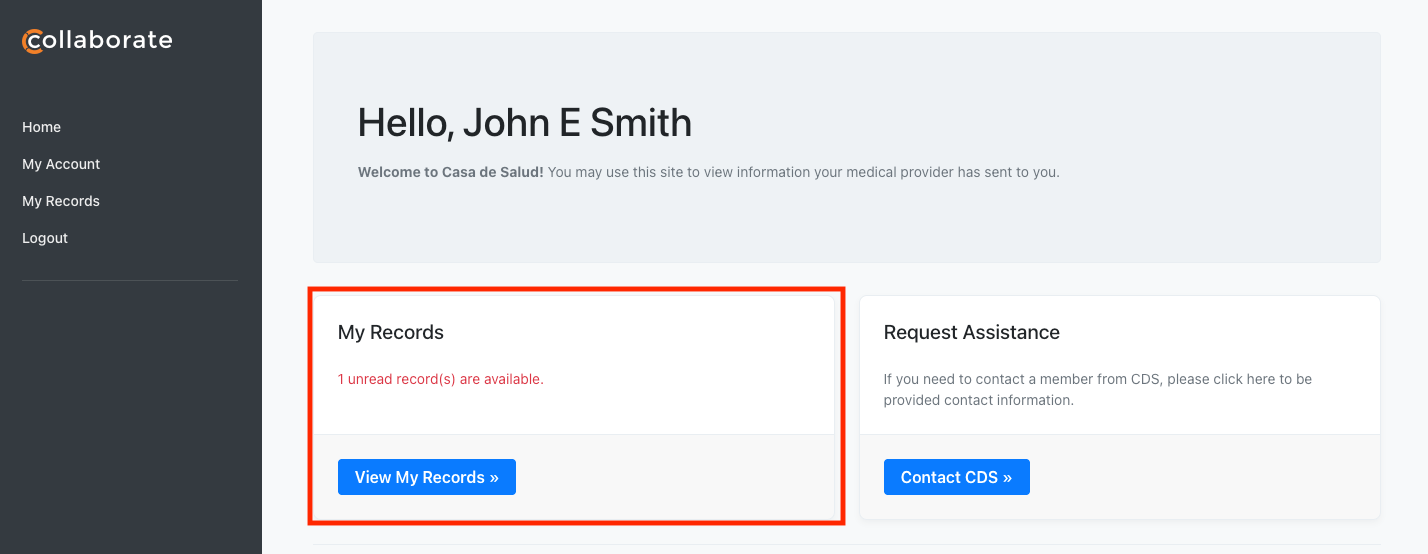
After logging in, you will see that you have one or more unread records in the My Records section. Click “View My Records”.
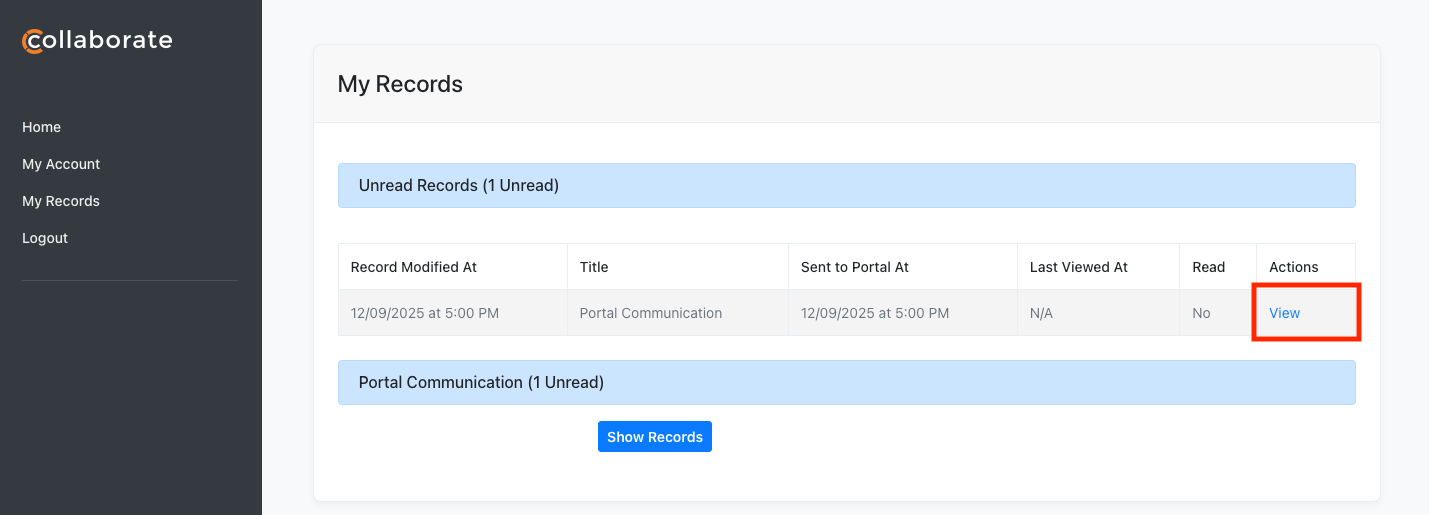
The next screen will display a list of your records. Any records that you have already viewed can be accessed by clicking the “Show Records” button. Click View next to the record you would like to review.
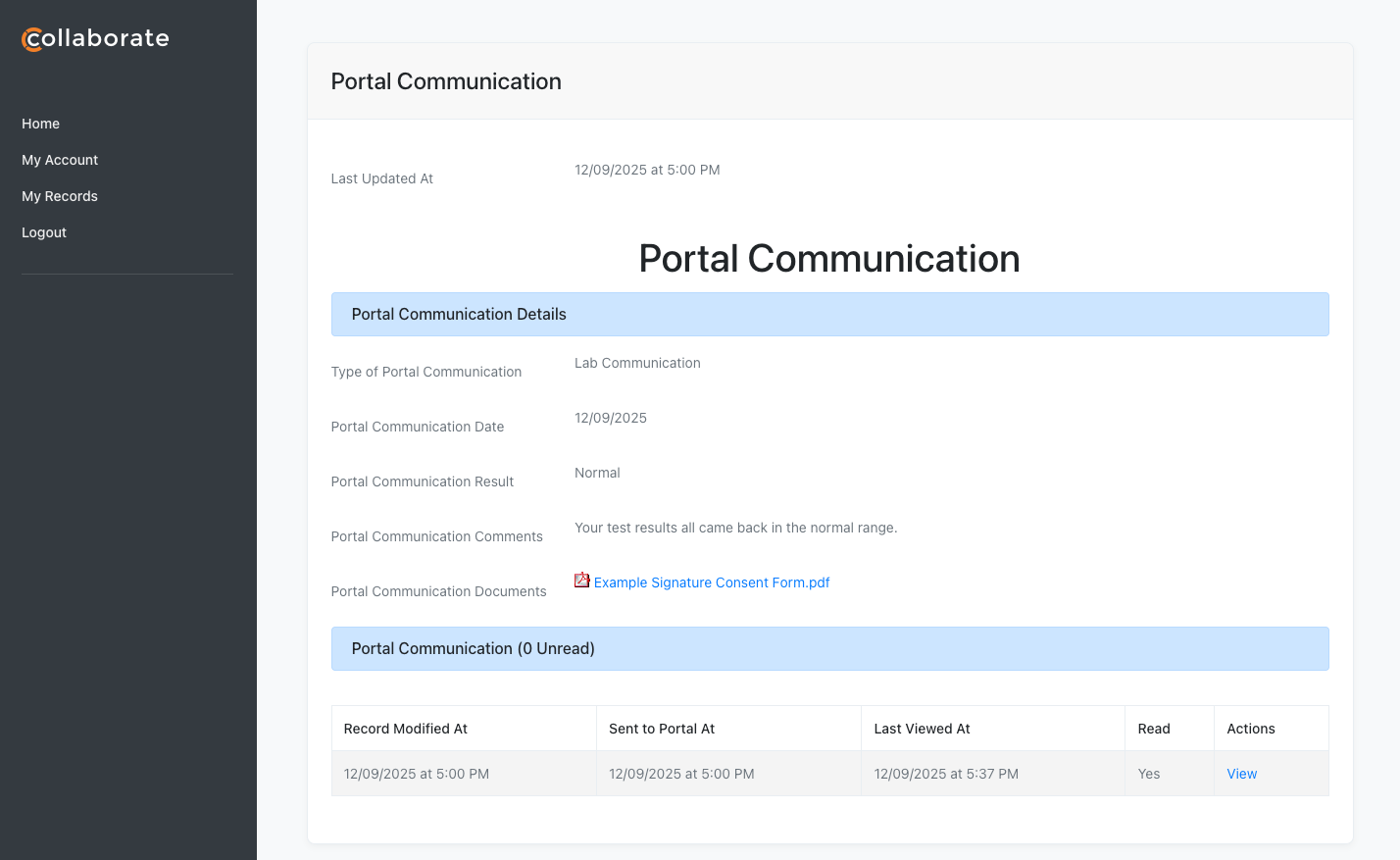
You will then be directed to the communication where you can review the information that was sent to you and view any documents sent with the communication as well.
Updating Portal Account Information
If you need to update your email address, change your password, or change what language your portal is displaying, you can do so by clicking “My Account” from the main landing page after you have logged into the Portal.
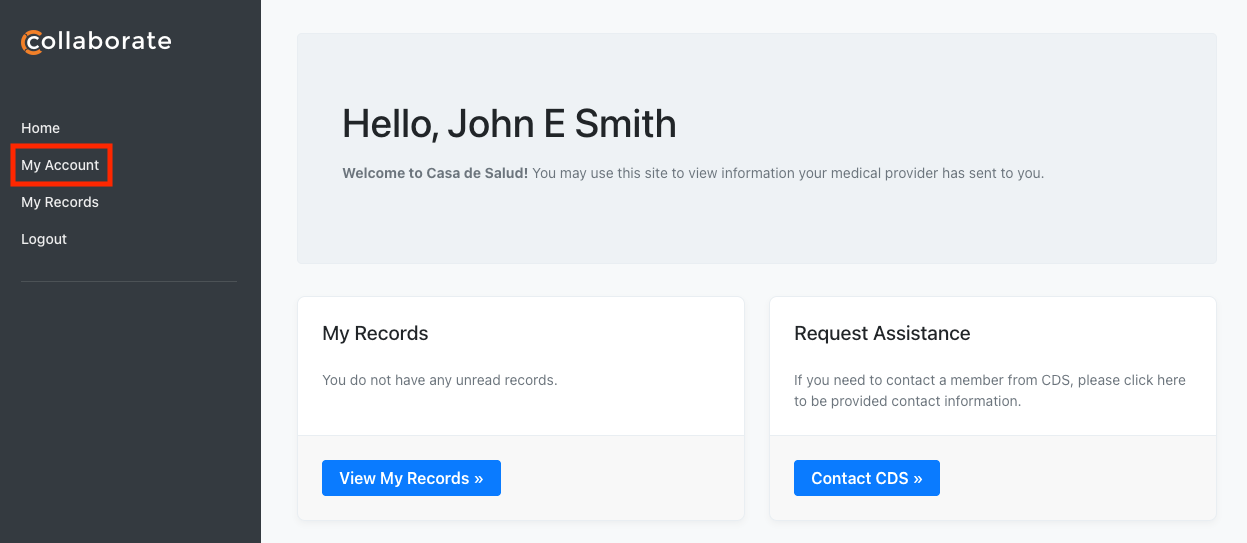
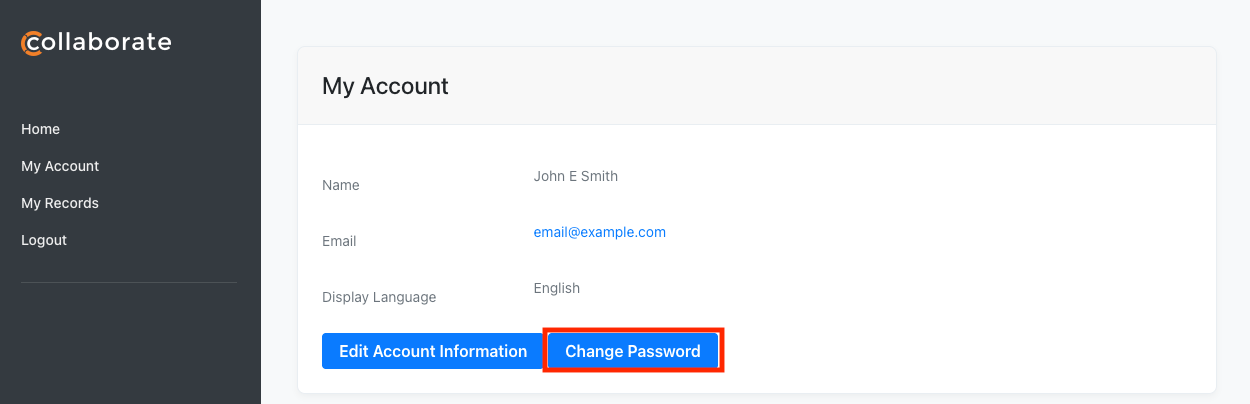
To change your password, click the Change Password button.
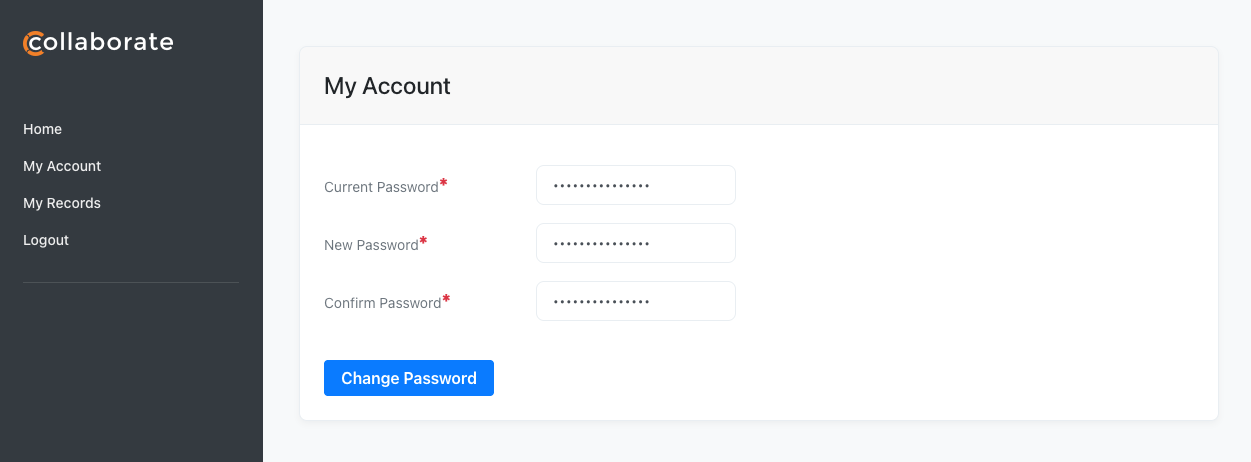
On the next page, you will be prompted to enter your current password, and then enter your new password twice. Once you are finished, click Change Password.
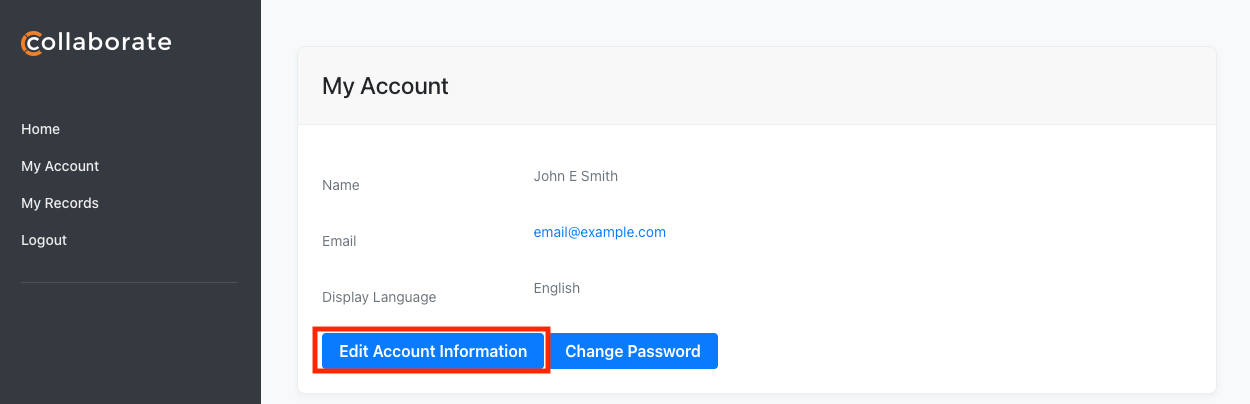
If you need to update your Email address, or which language the portal is displaying in, click “Edit Account Information”.
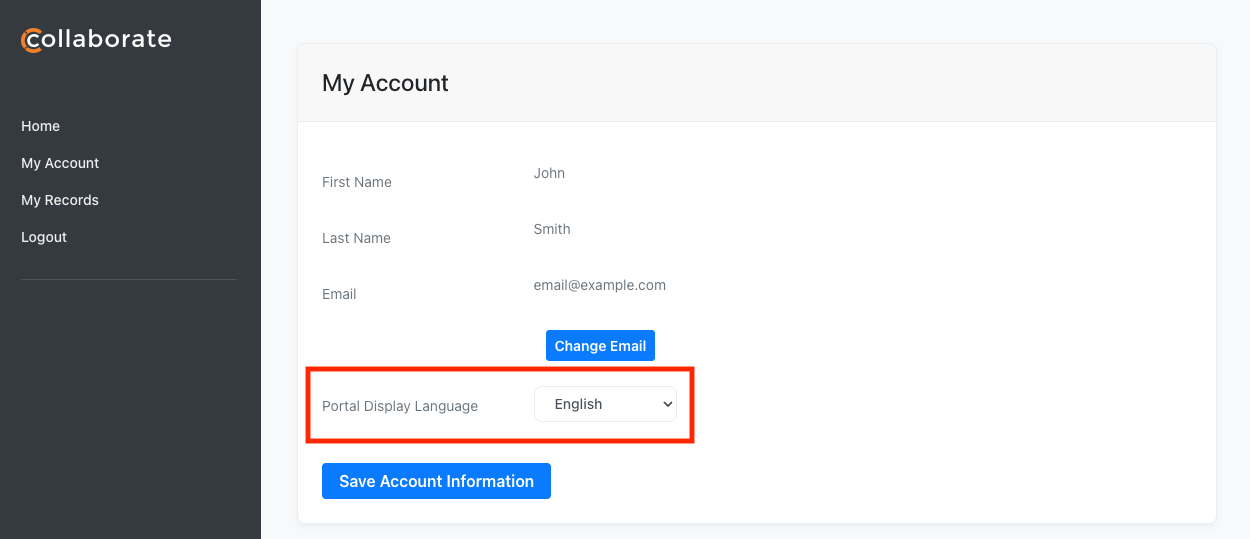
To change the language of the Portal, set the Portal Display Language to the desired value.
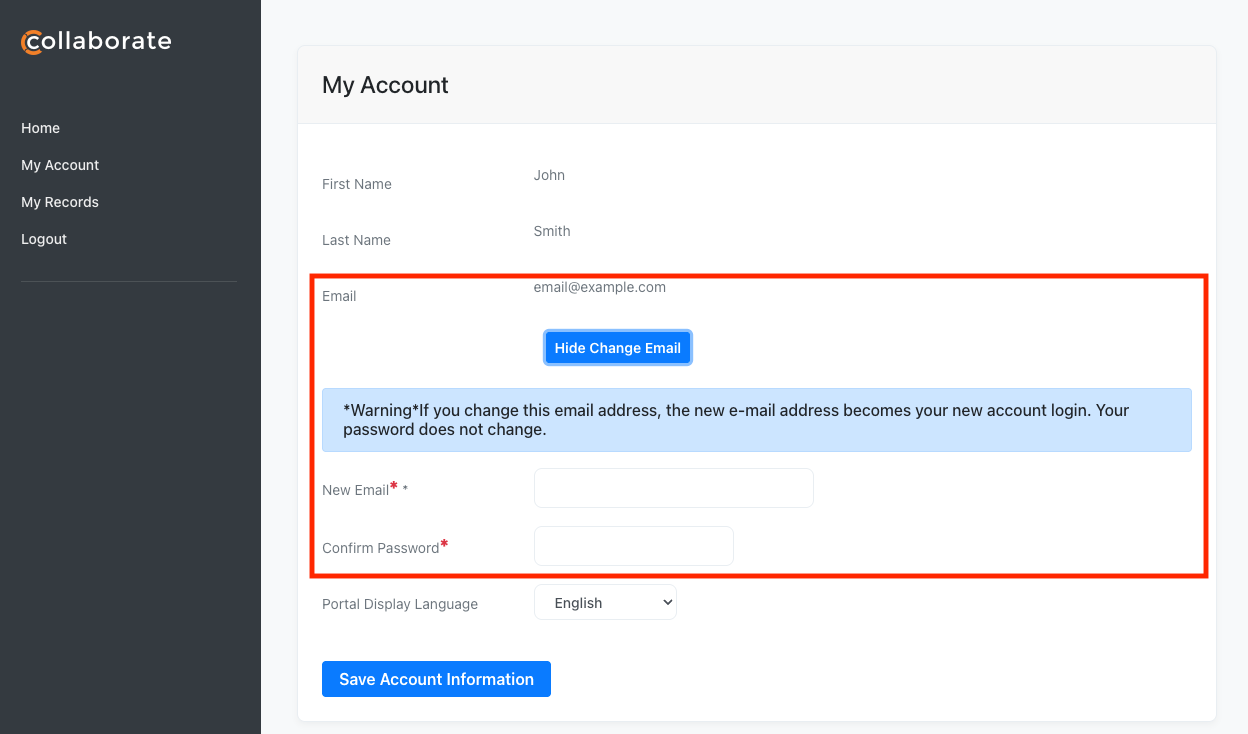
To update your email address, click “Change Email”, update the email address, and then click Save Account Information.
Requesting Portal Assistance
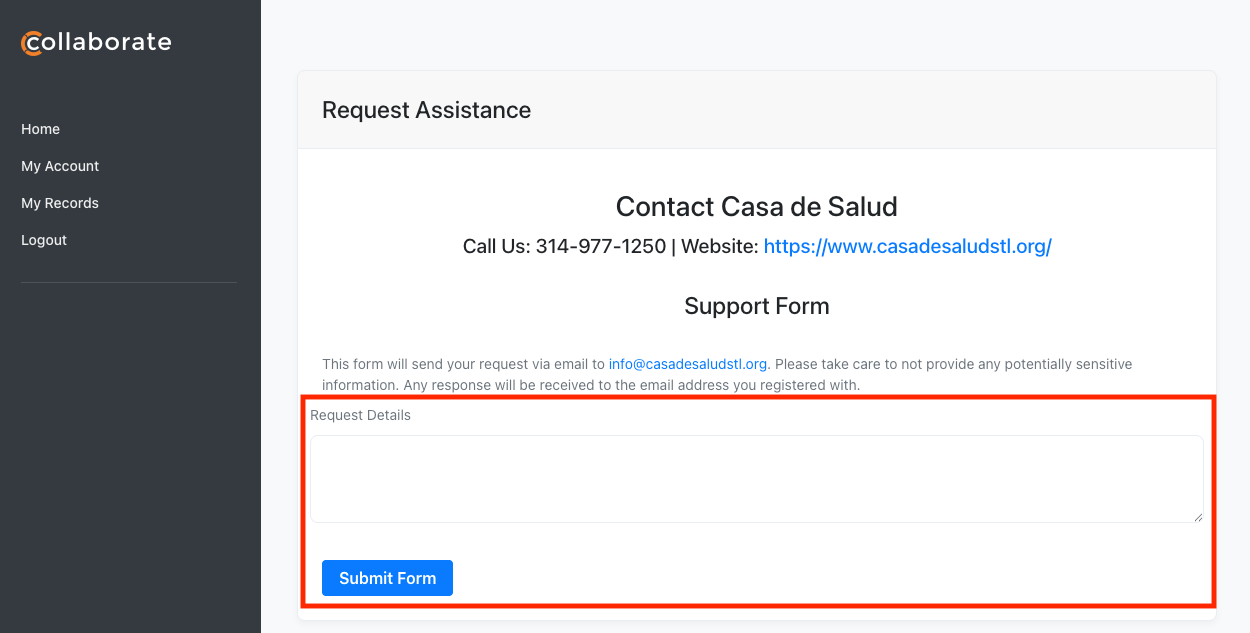
If you need to contact a member from CDS for Portal-related questions, you can do so by clicking the “Contact CDS” button on the main landing page after logging into the Portal.
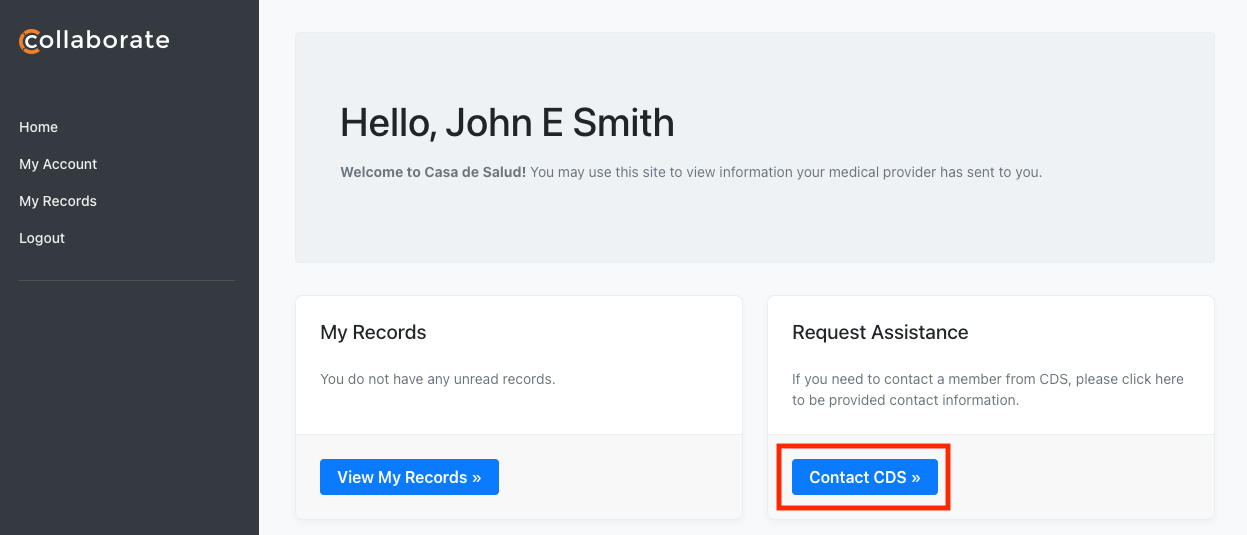
Type in your questions or comments on the next page and click “Submit Form”. CDS will receive your support request and respond promptly.